
 Lokstack
One project needs Node 18, a newer one needs Node 22, and a third was last touched when Node 16 was current. If your Mac has one global Node, at least one of them breaks with errors like:
error some-package@2.0.0: The engine "node" is incompatible with this module.
SyntaxError: Unexpected token '?'
Error: The module was compiled against a different Node.js version
The fix is to write down which Node each project wants, and have your shell switch to it when you enter the folder.
1. Install a Node version manager#
A version manager keeps several Node versions side by side and switches between them. The two most common on Mac are nvm and fnm. Pick one. Do not install both, and remove any Homebrew node you are not using, or you will not know which one runs.
Check what you have now:
which -a node
node -v
If which -a prints more than one path, you have more than one Node installed. That alone explains a lot of "it works in one terminal but not the other" problems.
2. Pin the version in the project#
In each project's root folder, create a .nvmrc file with the version it needs:
echo "22" > .nvmrcYou can write a major version (22) or an exact one (22.11.0). Commit this file. Anyone who clones the project, including your CI and your AI coding agents, can now see which Node it expects. fnm also reads .nvmrc, as well as .node-version.
3. Switch automatically when you cd#
With nvm, the version in .nvmrc is used when you run:
nvm install   # first time, installs the version from .nvmrc
nvm use       # switches to it
Typing nvm use every time is easy to forget. To make it automatic in zsh (the default shell on macOS), add this to ~/.zshrc:
autoload -U add-zsh-hook
load-nvmrc() {
  if [[ -f .nvmrc ]]; then
    nvm use --silent
  fi
}
add-zsh-hook chpwd load-nvmrc
load-nvmrc
Open a new terminal, cd into a project, and node -v shows the pinned version.
With fnm, switching on cd is built in. Add this line to ~/.zshrc:
eval "$(fnm env --use-on-cd)"Then run fnm install once in each project to install its version.
4. Make the wrong version fail loudly#
Add an engines field to package.json so the requirement lives with the code:
"engines": {
  "node": ">=22"
}
By default npm only warns about this. To make npm install refuse to run on the wrong version, add a .npmrc file in the project with:
engine-strict=trueA clear "wrong Node" error at install time is much easier to fix than a strange crash later.
5. Watch out for editors and AI agents#
Your auto-switch runs in your interactive shell. Some tools do not use it:
- Editors and their terminals may start with the Node they found at launch. If a project acts up only inside the editor, restart the editor's terminal or the editor itself.
- AI coding agents (Claude Code, Cursor, Codex) run commands in their own shells and do not always load your
~/.zshrchooks. Tell them in yourCLAUDE.mdorAGENTS.md: "Runnvm usebefore any npm command", or checknode -vin their output when something fails. - Native modules compiled under one Node version break under another. After switching, run
npm rebuildor deletenode_modulesand runnpm installagain.
The easier way: see every Node on your Mac in one place#
The setup above works, but when a project still will not start you are back to running which -a node and guessing. Lokstack is a Mac app that shows you what is actually there.
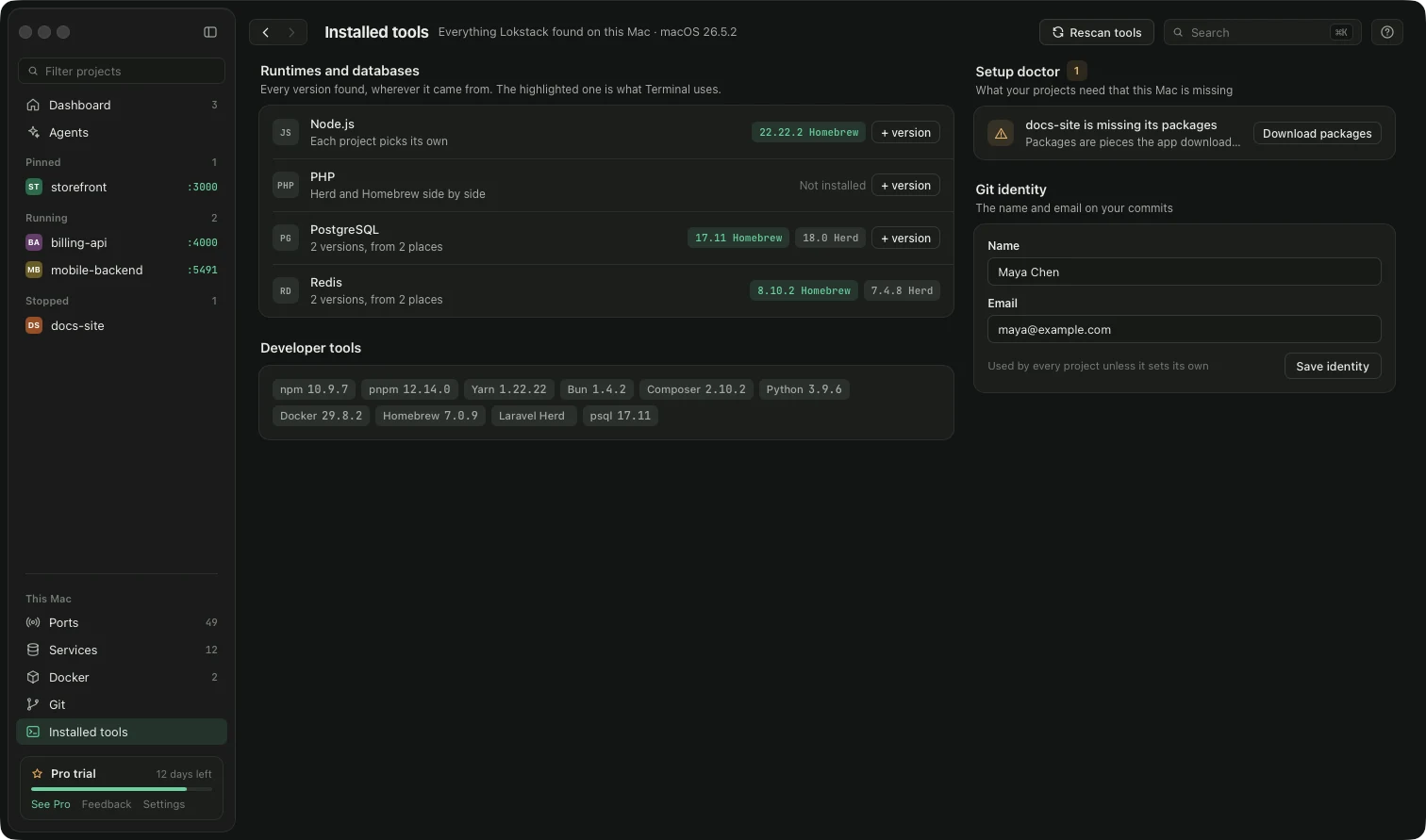
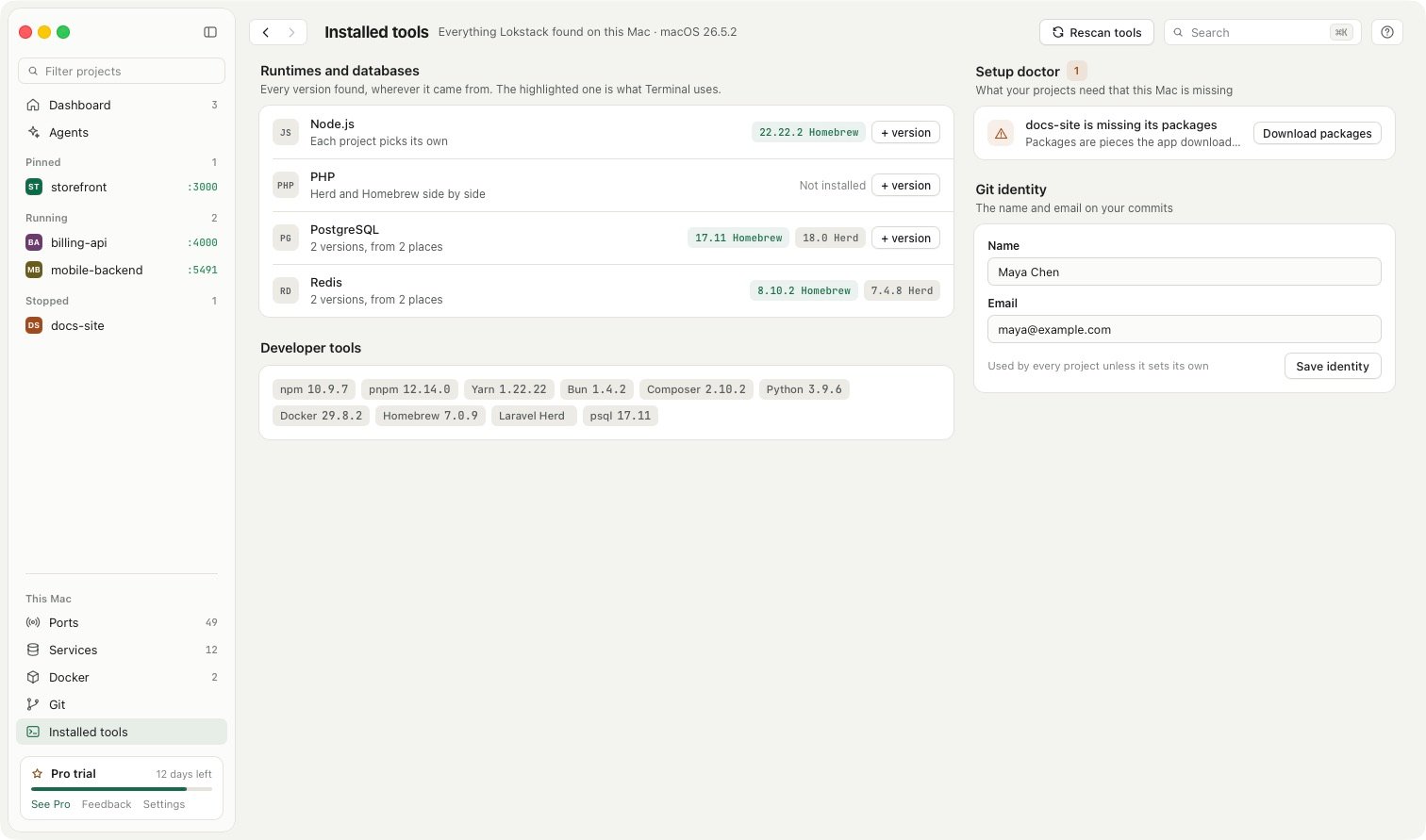
- Installed tools lists every Node.js and PHP version on your Mac and where it came from (nvm, Homebrew, Herd), with the one Terminal uses marked as default. You can install another version from the same screen.
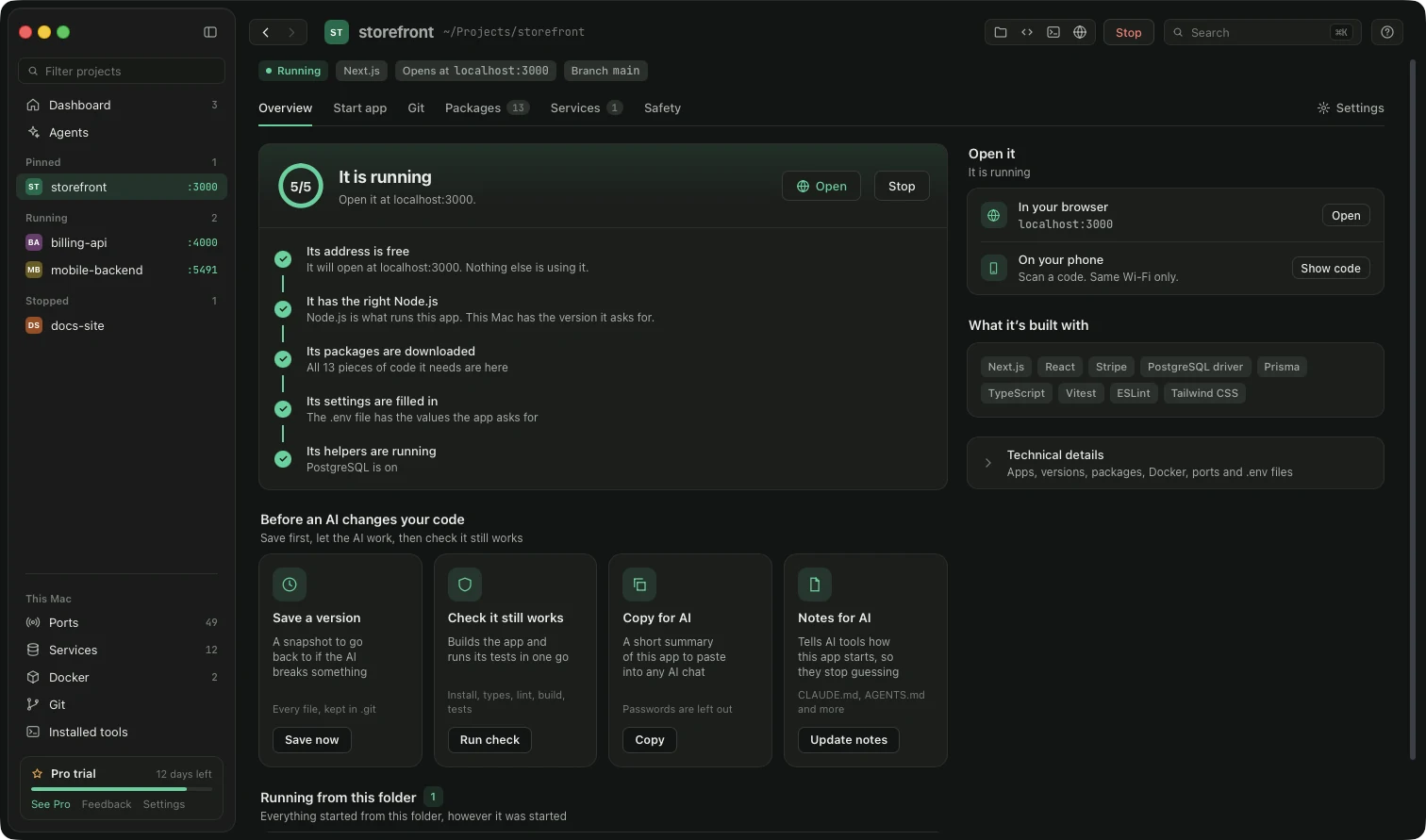
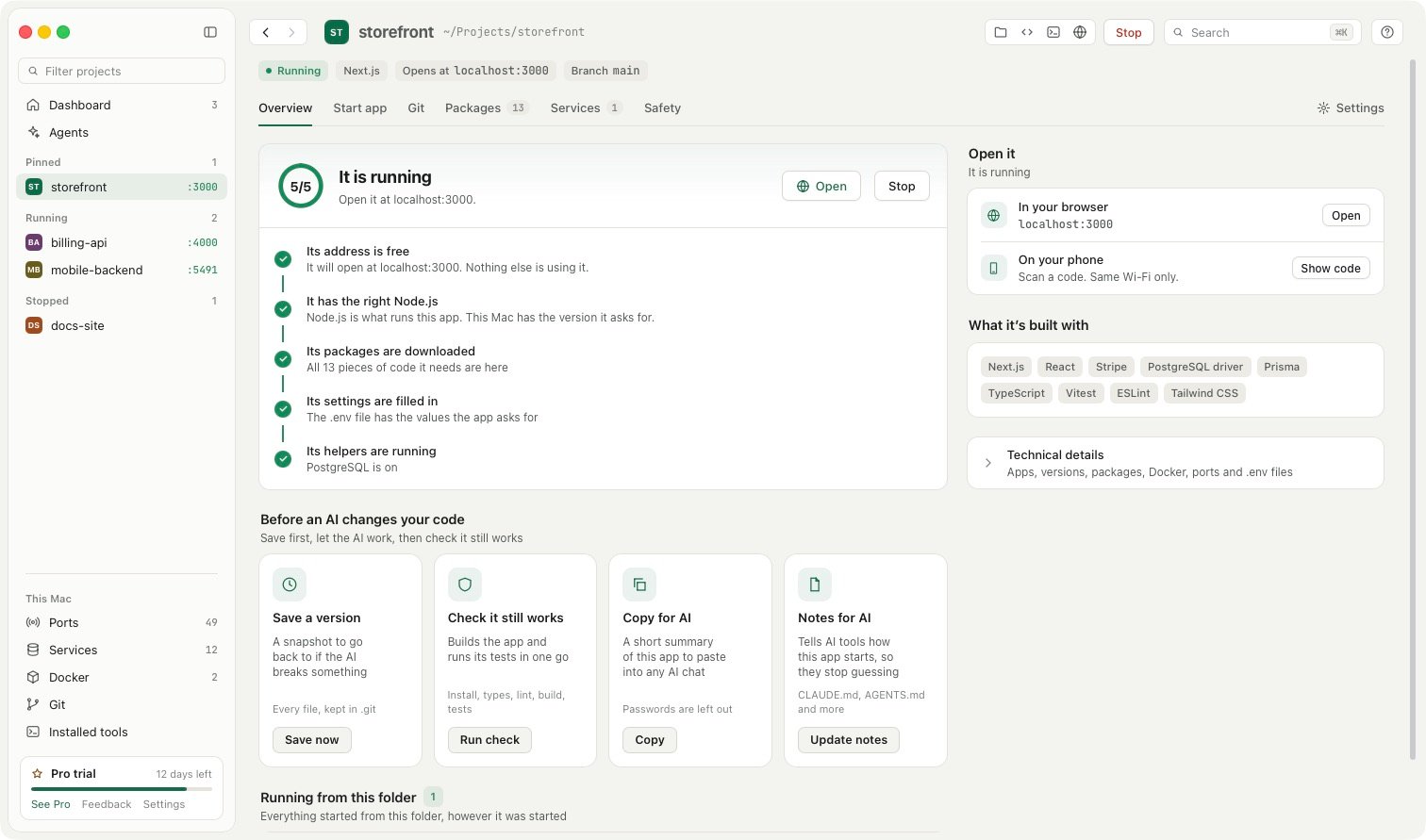
- Why it will not start, on each project's Overview, tells you when the project wants a different Node version, next to the other usual causes like missing packages or a busy port. Seeing the reason is free.
- With Lokstack Pro, you choose the Node or PHP version per project, and the fix in the red box (for example Use Node 24) is one click. You can also save the version in a
lokstack.ymlfile, so a teammate or your other Mac gets the same setup.
Pro is $79.99 a year, with 50% off the first year ($39.99, applied for you when you press Buy Pro), and you can try it free for 14 days with no card.