 Lokstack
You run npm run dev and get this instead of your app:
Error: listen EADDRINUSE: address already in use :::3000Or Next.js quietly moves to port 3001, and your browser tab on localhost:3000 shows an old version of something else. Either way, another program is already listening on port 3000. Only one program can listen on a port at a time, so the new one fails or moves.
Here is how to find out what it is, stop it safely, and stop it happening again.
1. Find what is listening on port 3000#
Open Terminal and run:
lsof -nP -iTCP:3000 -sTCP:LISTENYou get something like:
COMMAND   PID USER   FD   TYPE  DEVICE SIZE/OFF NODE NAME
node    48213 you    23u  IPv6  0x...       0t0  TCP *:3000 (LISTEN)
The part that matters is the PID (process ID), here 48213, and the COMMAND, here node.
Two details make this command safe to rely on:
-sTCP:LISTENshows only the program that is listening on 3000. Without it,lsofalso lists programs that are merely connected to port 3000, such as your browser. You do not want to stop your browser.-nPshows raw numbers instead of looking up names, so it is faster and the port shows as3000, not a service name.
If nothing comes back, nothing is listening on 3000 right now. The error may be from a different port, so check the exact number in the message.
2. See who started it#
node does not tell you much when you have five projects open. Before you stop anything, check what that process actually is:
ps -o pid,ppid,etime,command -p 48213This shows the full command (for example node /Users/you/Projects/shop/node_modules/.bin/next dev), how long it has been running (etime) and its parent process (ppid). To see which folder it was started in:
lsof -a -p 48213 -d cwdNow you know whether this is yesterday's dev server you forgot about, a server an AI coding agent started and left behind, or something you actually still need.
3. Stop it safely#
Ask the process to quit first:
kill 48213Plain kill sends a polite "please shut down" signal, so the server can close files and connections properly. Run the lsof command again to check that port 3000 is now free.
If it is still there after a few seconds, force it:
kill -9 48213-9 ends the process at once without letting it clean up. Use it only when the polite version did not work.
If you are sure you want to stop whatever is listening on port 3000, you can do steps 1 and 3 in one line:
kill $(lsof -t -iTCP:3000 -sTCP:LISTEN)Keep the -iTCP:3000 -sTCP:LISTEN part exactly as written. A shorter version that skips the LISTEN filter can match programs that are only connected to the port, like your browser.
If you get "Operation not permitted", the process belongs to another user (often a tool running as root). Stop it from the app that started it rather than reaching for sudo.
4. Stop it happening again#
Most "port in use" errors come from the same few habits:
- Closed the terminal tab, not the server. Closing a tab or an editor window does not always stop the dev server inside it. Stop servers with Ctrl+C before you close the tab.
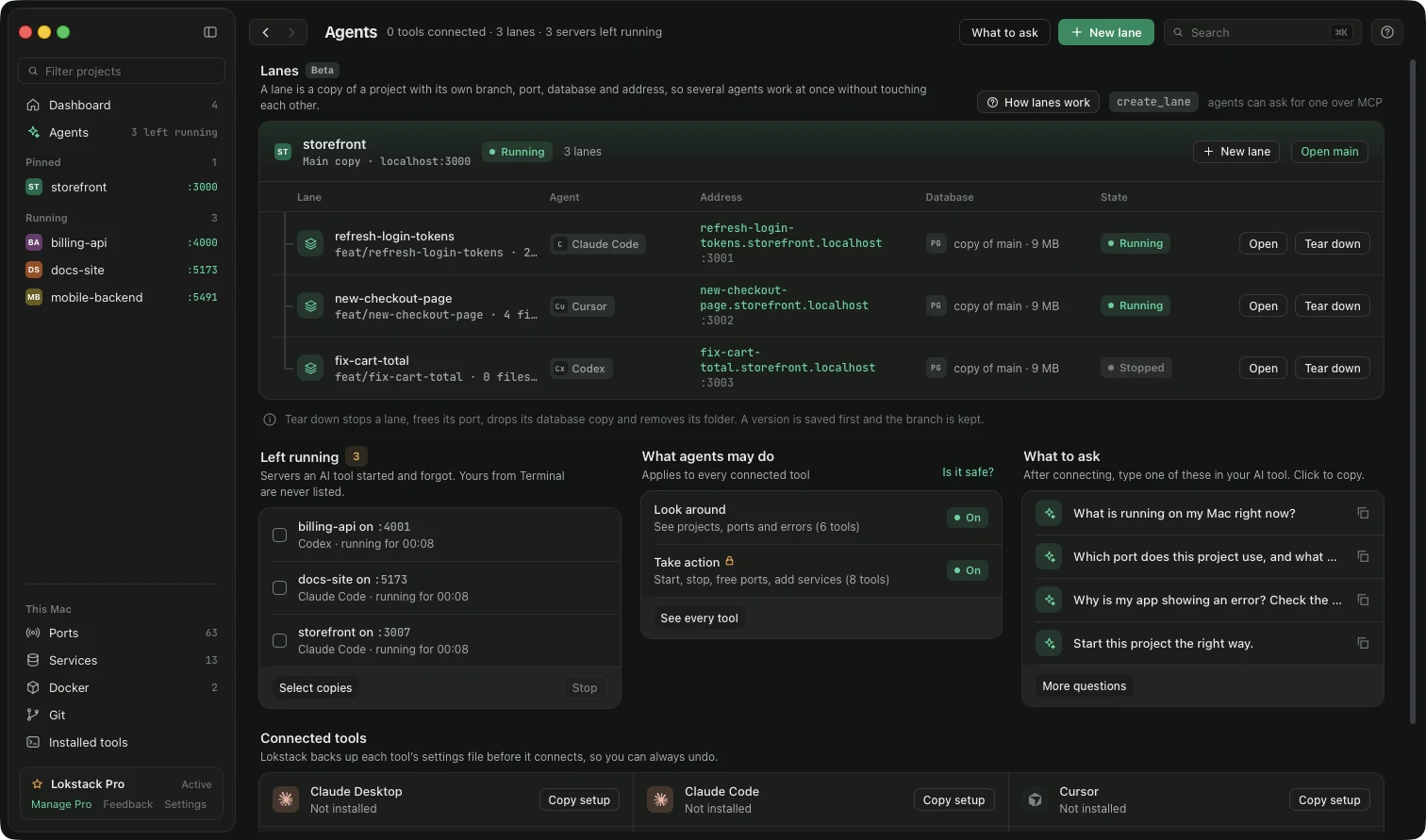
- AI coding agents starting servers. Claude Code, Cursor and Codex often run
npm run devto test their work and then move on. The server keeps running in the background. Ask your agent to stop any server it starts, or put that instruction in yourCLAUDE.mdorAGENTS.md. - Two projects that both default to 3000. Give each project its own port, for example
PORT=3001 npm run dev, or set it in the project's.envor dev script, so they never fight. Or skip port numbers altogether with a name per project, like shop.localhost.
If you want the longer version, with what to do when the process keeps coming back, see What's using port 3000 on my Mac? and Port already in use? How to fix it when your AI coding agent keeps starting servers.
The easier way: see every port in one window#
The commands above work, but you have to remember them and run them one port at a time. Lokstack is a free Mac app that shows every listening port on your Mac in one list, with the project and program that own it.
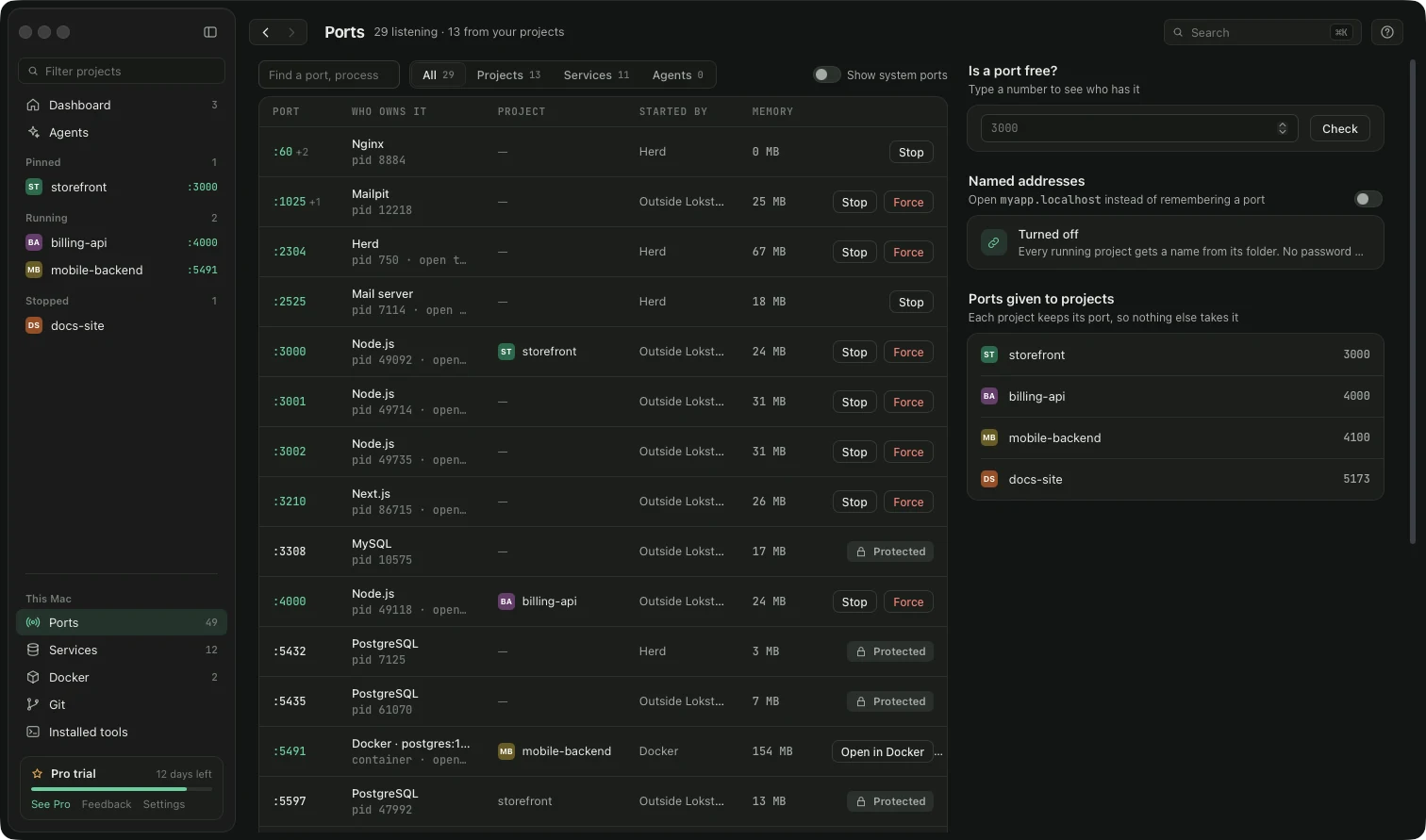
- The Ports page lists every port with its program, project, PID and uptime. Search by port number, program or project.
- Stop asks the program to quit. Force ends it at once if it will not. Databases and other services are protected from accidental stopping.
- Why it will not start on a project's Overview tells you when a port is the problem, next to the other usual reasons like a wrong Node version or missing packages.
- Servers your AI left running lists dev servers that AI coding tools started and forgot, so you can stop them in one click. Anything you started yourself in Terminal is never listed there.
All of that is in the free version. Lokstack Pro adds lanes for AI agents (in beta), which give each agent its own port so they do not clash in the first place. You can try Pro free for 14 days with no card.