
 Lokstack
Every project collects small things that are not code: the doc page that explained the payment API, the command that fixed the build last time, "check the cart total rounding", an idea for later. They end up in five places: a sticky note, a chat with yourself, a TODO.md that someone commits by accident, comments in the code, and your memory.
The goal is one place per project that is close to the code, private to you, never committed, and easy for your AI coding tools to read.
Option 1: a notes file Git ignores, only on your Mac#
Create NOTES.md in the project and tell Git to ignore it only in your copy, without touching the shared .gitignore:
echo "NOTES.md" >> .git/info/exclude.git/info/exclude works like .gitignore, but it is never committed, so your teammates never see the rule or the file. Check it worked:
git status --shortNOTES.md should not appear. The catch: the file lives in one working folder. A second worktree or a fresh clone does not have it, and deleting the folder deletes your notes.
Option 2: one ignore rule for every project#
If you use the same notes filename everywhere, set it once in your global ignore file:
git config --global core.excludesFile ~/.gitignore_global
echo "NOTES.md" >> ~/.gitignore_global
Now no repository on your Mac will ever pick up a NOTES.md. Same catch as above: notes still live inside each folder.
Option 3: keep notes outside the project#
A folder like ~/notes/shop.md survives worktrees, re-clones and branch switches, and can never be committed by accident. The cost is distance: it is one more place to open, and nothing links it to the project.
A format that works#
Whatever you pick, a few conventions make a notes file useful later:
## Todo
- [ ] Check cart total rounding with 3 items src/cart/total.ts:42
- [x] Upgrade Stripe SDK

## Later
- Split the email templates into their own package #idea

## Links
- https://docs.stripe.com/payments/checkout
Checkboxes (- [ ]) render as a checklist on GitHub and in most editors. A file:line reference takes you straight to the code. A #tag lets you search for every idea later.
Let your AI tools read it#
AI coding agents work better when they know what is planned. Point them at your notes in CLAUDE.md or AGENTS.md:
My open todos for this project are in NOTES.md (not committed).
Read it before suggesting what to work on next.
Because the file is ignored, the agent will not commit it either. Do not keep passwords or keys in it: anything an AI tool reads can end up in a prompt.
The easier way: a Backlog for every project in Lokstack#
Lokstack is a Mac app for local development, and each project in it has a Backlog: notes, links, ideas and todos, saved on your Mac in ~/.lokstack/backlog/, never in the project folder. They never end up in Git, and they survive worktrees, branch switches and re-clones.
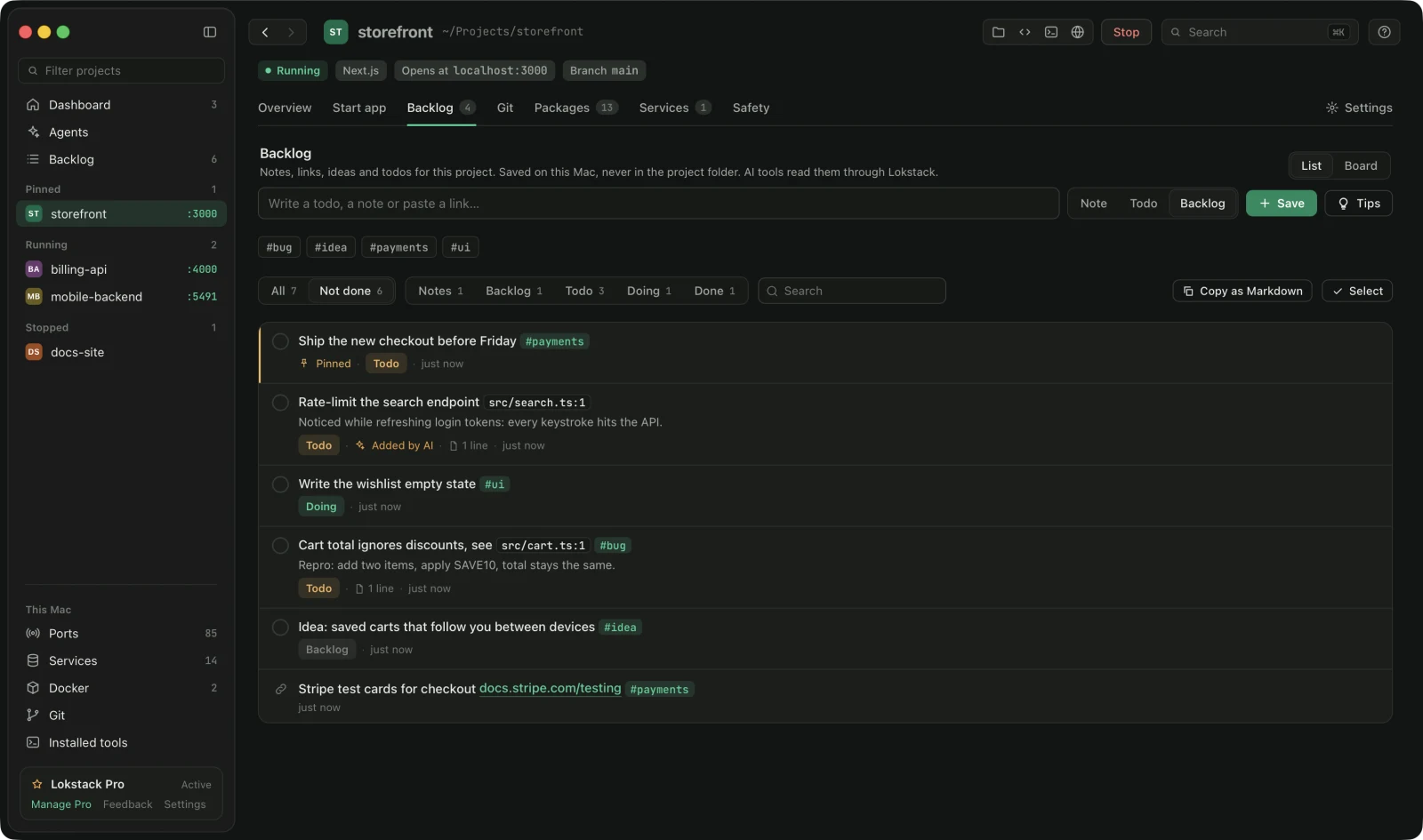
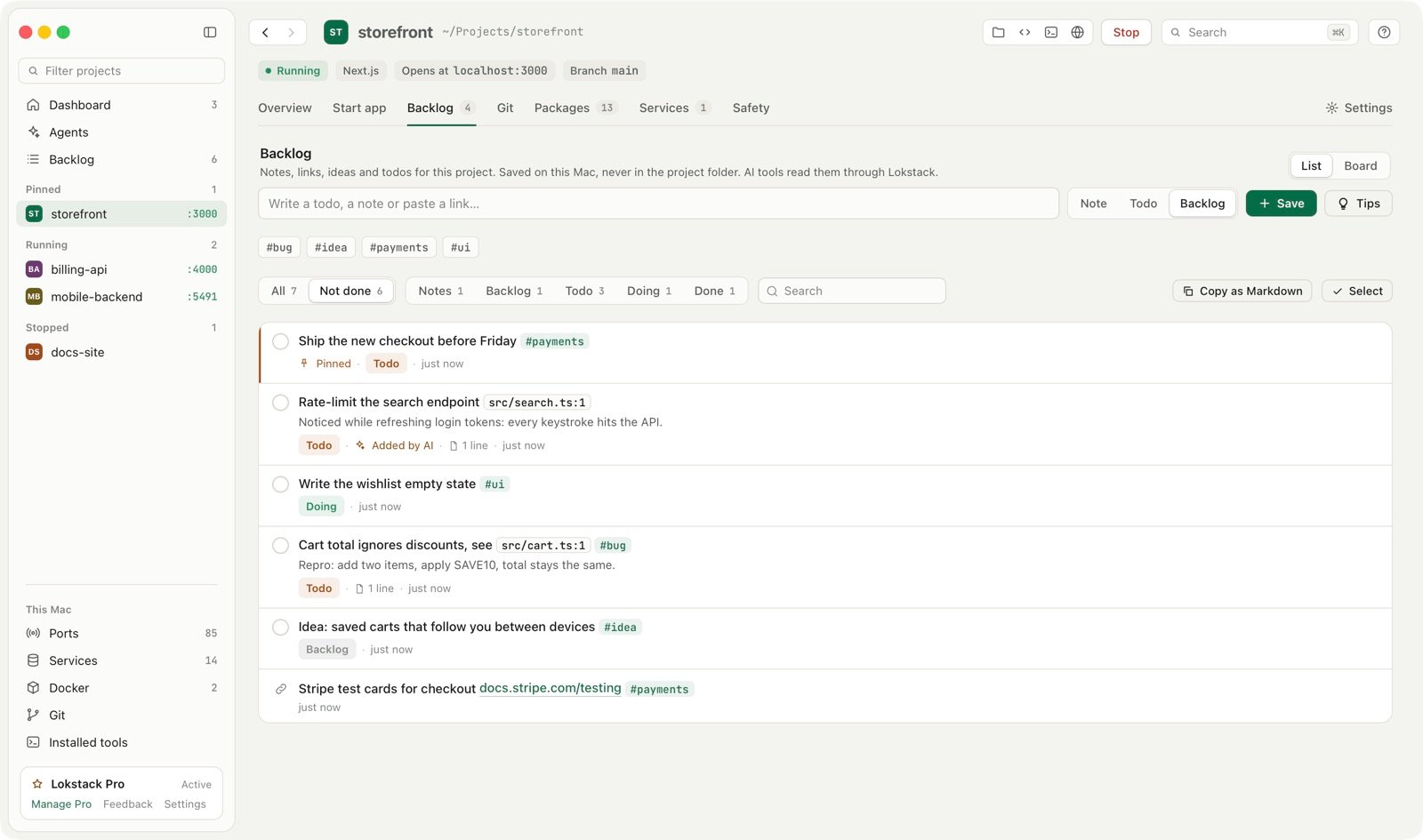
- Type and press ↩. Choose Note, Todo or Backlog (for later).
#ideabecomes a tag, a link becomes clickable, andsrc/cart/total.ts:42becomes a button that opens that line in VS Code. - Paste a checklist. Several lines come in as one note or as separate items, and
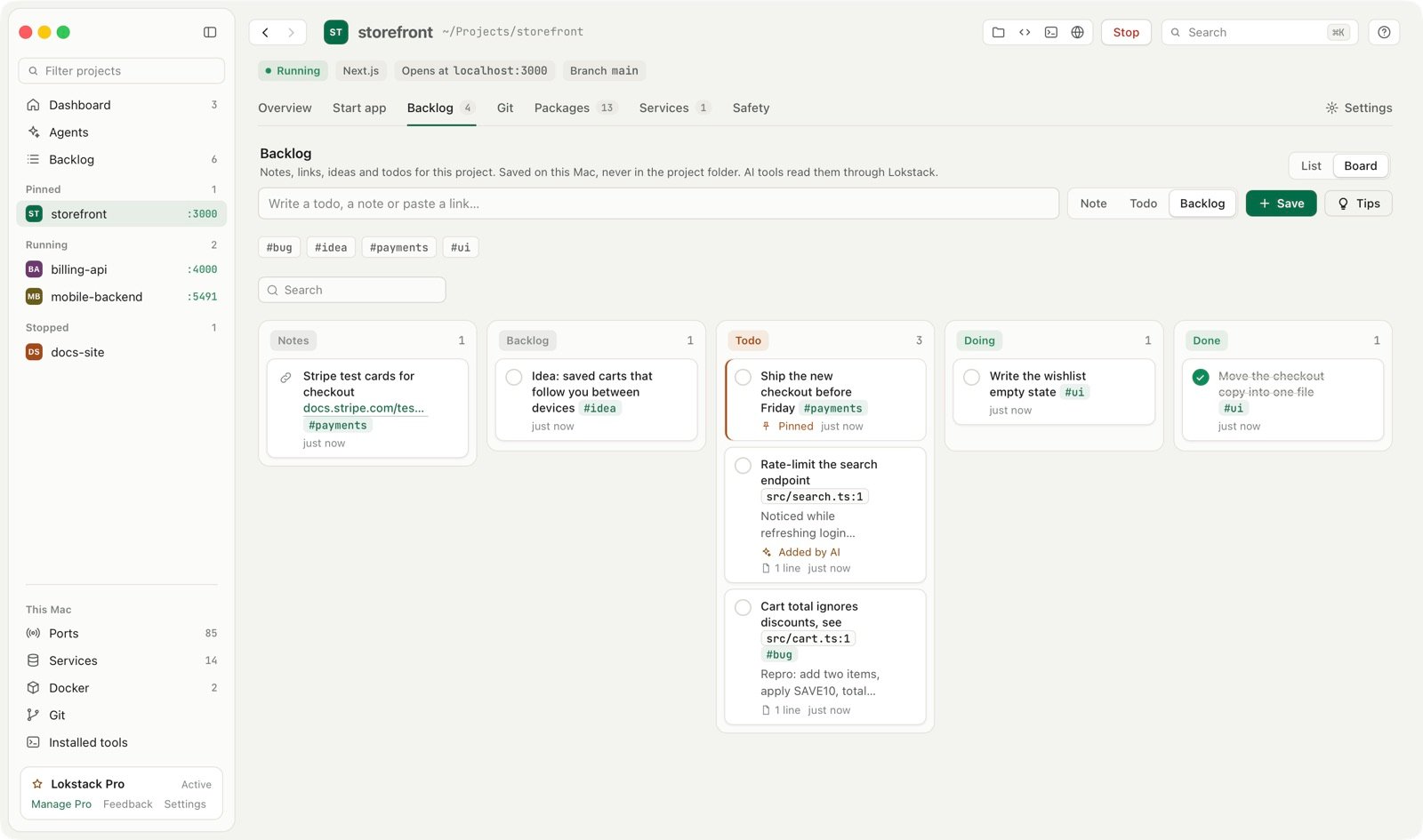
- [ ]and- [x]arrive as todos and done items. - List or board. Five columns from idea to finished, Notes, Backlog, Todo, Doing and Done, and you drag a card to move it.
- Quick note anywhere. Press N on any page, pick the project, type, done.
- Every project at once. Backlog in the sidebar shows all projects' items on one page, and each project's Overview shows its top three under Next up.
- Copy as Markdown turns what is shown into a checklist for a pull request or an AI chat.
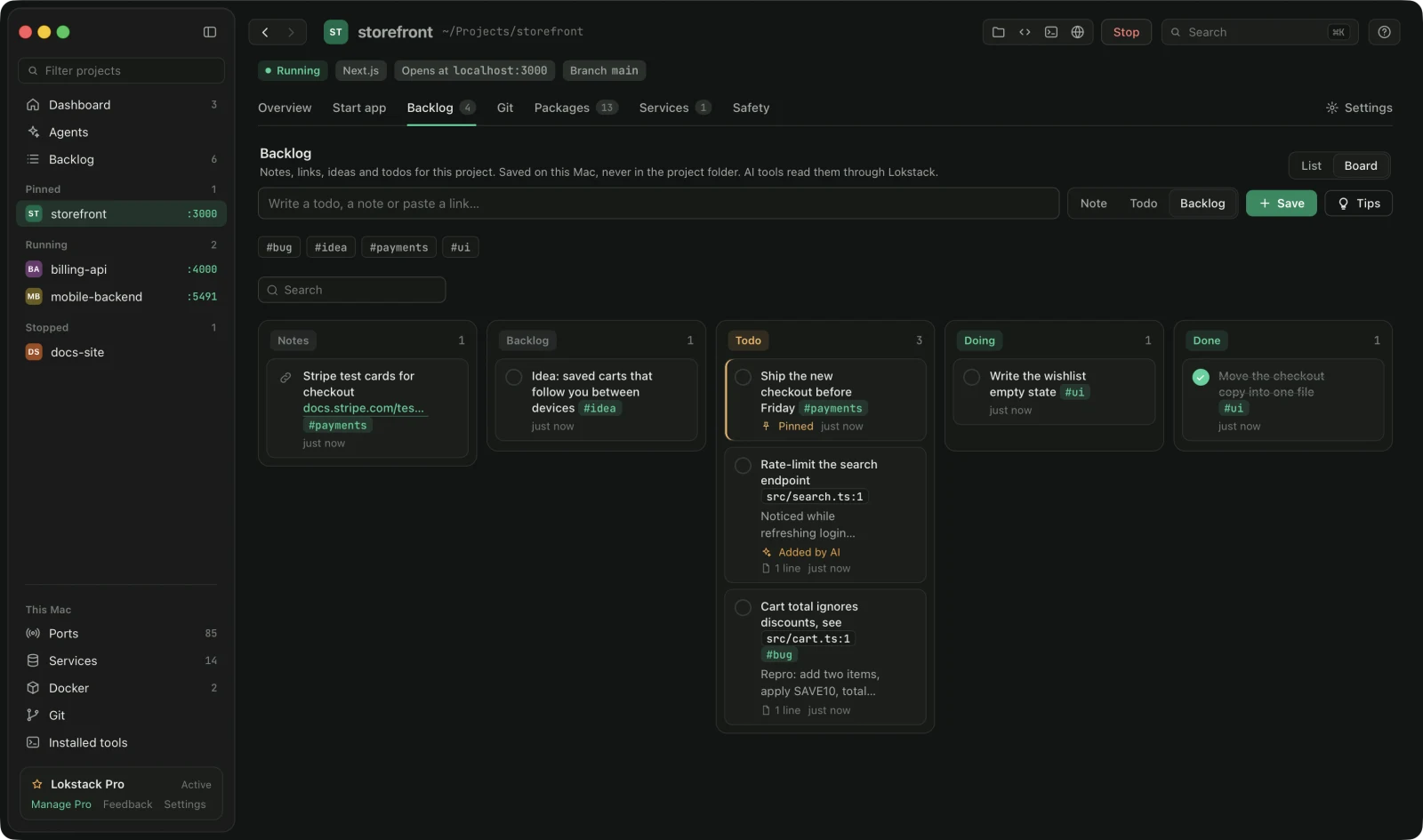
Your AI tools can read it. Connect Claude Code, Cursor or Codex to Lokstack and ask "what should I work on next?" The tool reads the backlog with list_backlog. Your items are passed to it as data, never as instructions. With Pro, the tool can also save a follow-up it noticed with add_backlog; those items show Added by AI.
The Backlog, and AI tools reading it, are free. Adding items from an AI tool is part of Lokstack Pro, which has a 14-day trial with no card.