
 Lokstack
Docs Pages
AI tools
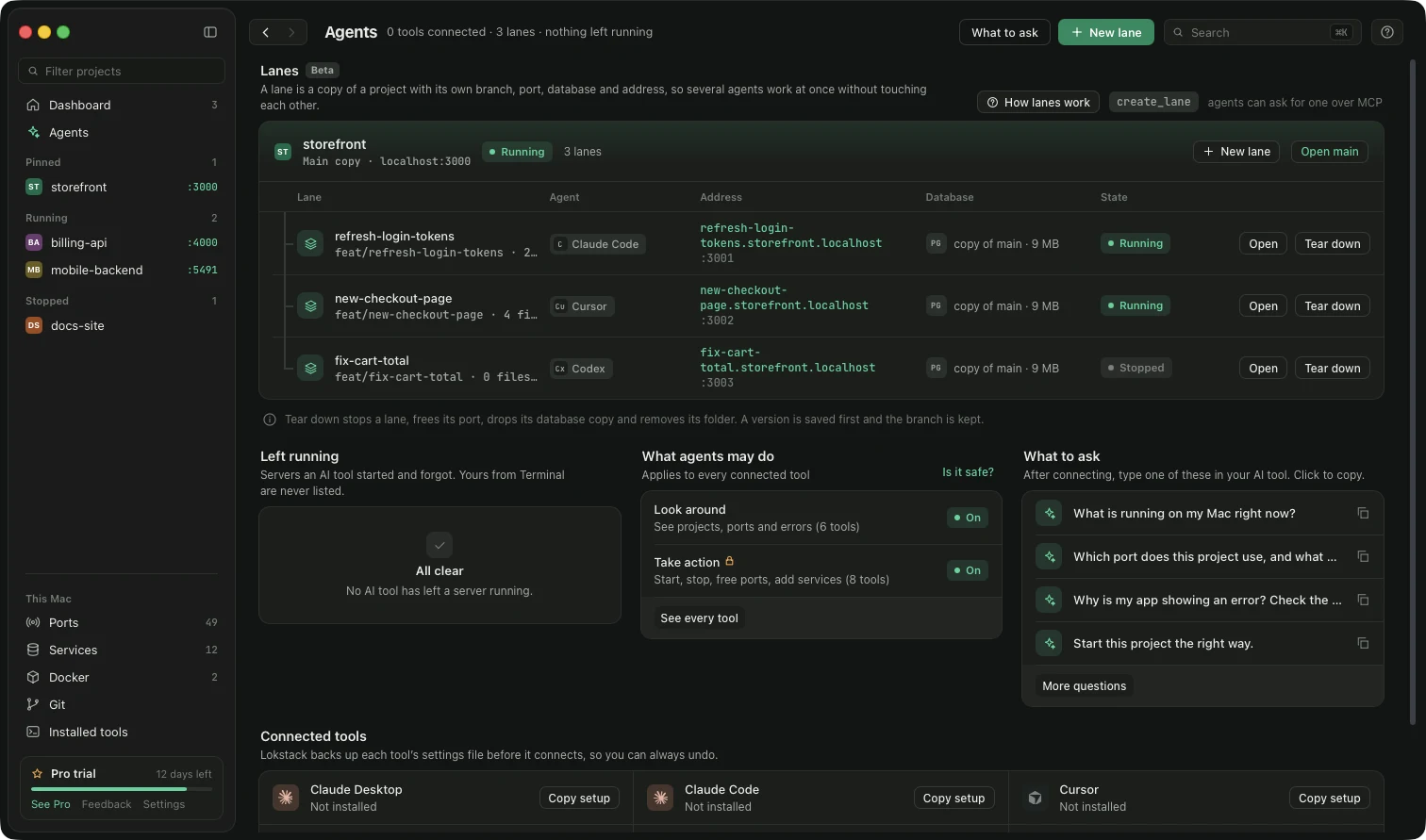
Lets AI coding tools see and run your projects.
Connect a tool#
- Find your tool in Connect your AI tools (Claude Desktop, Claude Code, Cursor, Codex, Windsurf, VS Code, Gemini, Zed).
- Press Connect. Lokstack explains what it will change before it does anything.
- Restart the AI tool once.
- Press How to check: it tells you where to find "lokstack" in that tool, offers a question to try, and has a Test Lokstack's side button.
Tools that are not installed show Copy setup so you can paste the settings yourself.
What connecting changes: Lokstack adds one entry named "lokstack" to that tool's own settings file (for Cursor, ~/.cursor/mcp.json) and saves a .lokstack-backup copy first. No login or permission prompt is needed because it only edits a file in your account. Disconnect removes the entry.
Codex keeps one shared list for the Codex app, the codex Terminal command and the IDE extension, so connecting it applies to all three. Lokstack does not check whether you are logged in to Codex.
Is it safe?#
Press Is it safe? on the page for the full answer. In short:
- It runs only on your Mac, and only while the AI tool is open.
- A connected tool can see your project list, ports, app errors and local test emails. With Pro it can also start, stop and restart projects, free a stuck port, set up services and run the health check.
- It cannot read or change your code, delete data, remove services or stop your databases.
- Saving a start command and starting the project means the tool can make Lokstack run that command, so connect only tools you trust with your project.
Other parts of the page#
- What can they do? and What to ask: lists of what a connected tool can do and example questions to copy.
- Servers your AI left running: AI tools often start your app and forget it. These are listed so you can stop them in one click. Anything you started in your own Terminal is never listed.
Something unclear or missing? Tell us or write to support@lokstack.app.